VitaminVPN guide: the fast VPN app for Android and Windows
Everything VitaminVPN can do, step by step: quick start, connection modes (Automatic, Diamond, Photon, Graviton, Higgs…), connection codes like 101D, split tunneling, servers map and Windows hotspot.
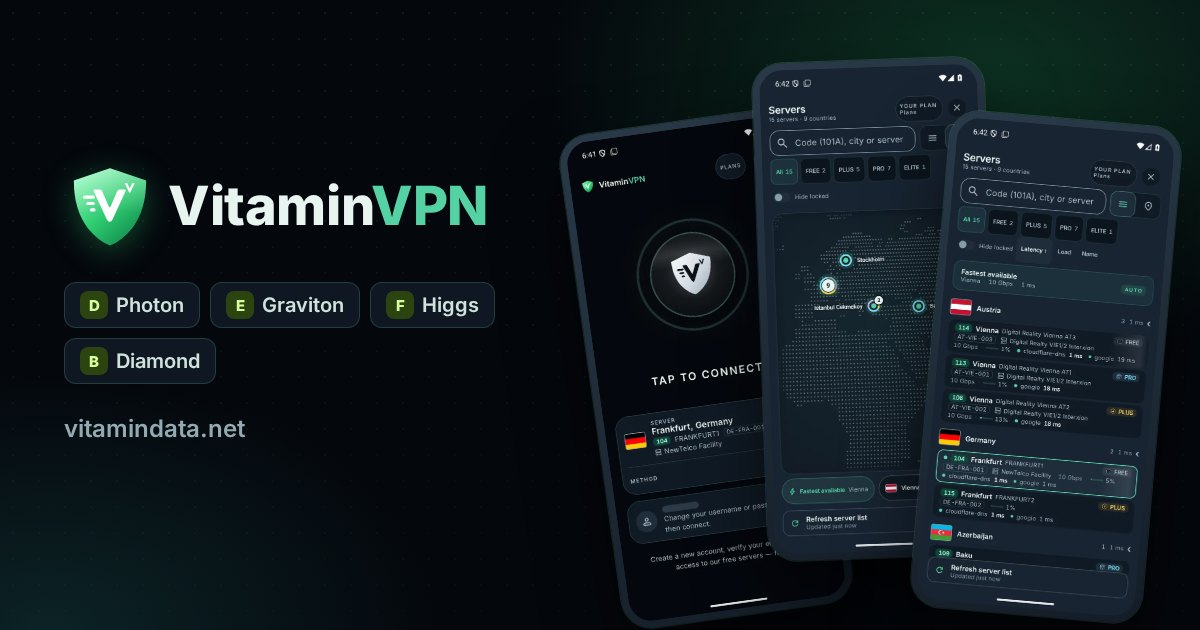
VitaminVPN is the official VPN app of VitaminDATA, for Android and Windows. It is built for filtered networks, such as those in Iran, China and Russia, where ordinary VPNs are often blocked: instead of one fixed way to connect, the app has several connection modes and tries them for you until one works. This guide walks through every feature in plain words, with screenshots from the real app, so you can get connected fast and stay connected.
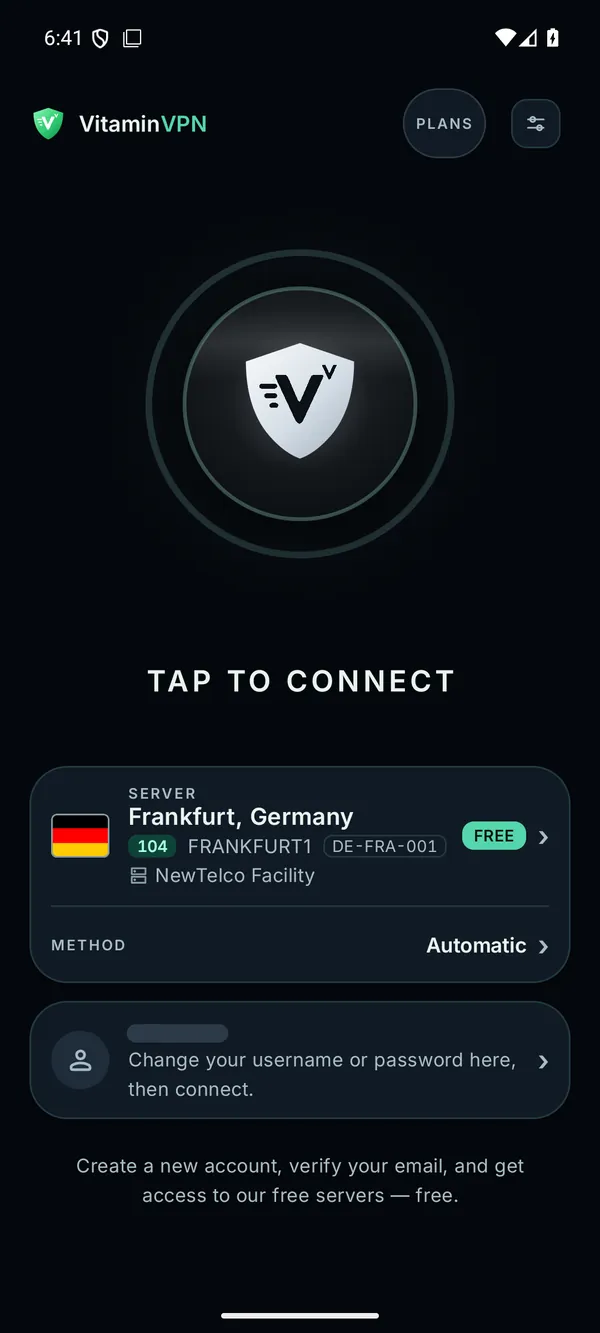
The VitaminVPN home screen: one big button to connect, your server, and the connection method.
What VitaminVPN is, in one minute
- One tap to connect. Automatic mode looks for a working route by itself and remembers it for next time.
- Ten ways to connect. Automatic, Diamond and eight named modes such as Photon, Graviton and Higgs. Each mode has a letter, A to K. Pick any server location with any mode.
- Connection codes. A short code like 101D names a server and a connection method, so you can share a setup that works with friends.
- Split tunneling on Android: choose which apps use the VPN.
- Kill switch and leak protection, so your traffic does not slip out if the connection drops.
- A live servers list and map with ping, load, plan and data centre for each server. The same list is on our VPN server locations page.
- Eight languages in the app: English, Persian, Arabic, Turkish, Russian, Chinese, and Azerbaijani in Latin and Arabic script.
VitaminVPN is included in every plan, the free plan too. See what is new in each version on the VitaminVPN app page.
Quick start: connected in four steps
- Create your account. Start on the free VPN page: sign up with your e-mail, confirm it, and you get the free plan on our free servers. Want more servers and data? Pick a plan on the VPN plans page.
- Get your VPN username and VPN password. In your account, open My VPNs and find the VPN password card. The app uses these, not your website e-mail and password.
- Install the app. After you sign in, use Download VitaminVPN in your account menu, or get it from our Telegram bot @VitaminNEObot. Android 8.0 or newer; Windows 10 or 11.
- Connect. Open VitaminVPN, enter your VPN username and password, and tap the big button. Android asks you once to allow the VPN; tap OK.
That is all. While it connects, the app shows Finding a way through and tries one route after another. Once connected, you see your live speed and the data left on your plan.
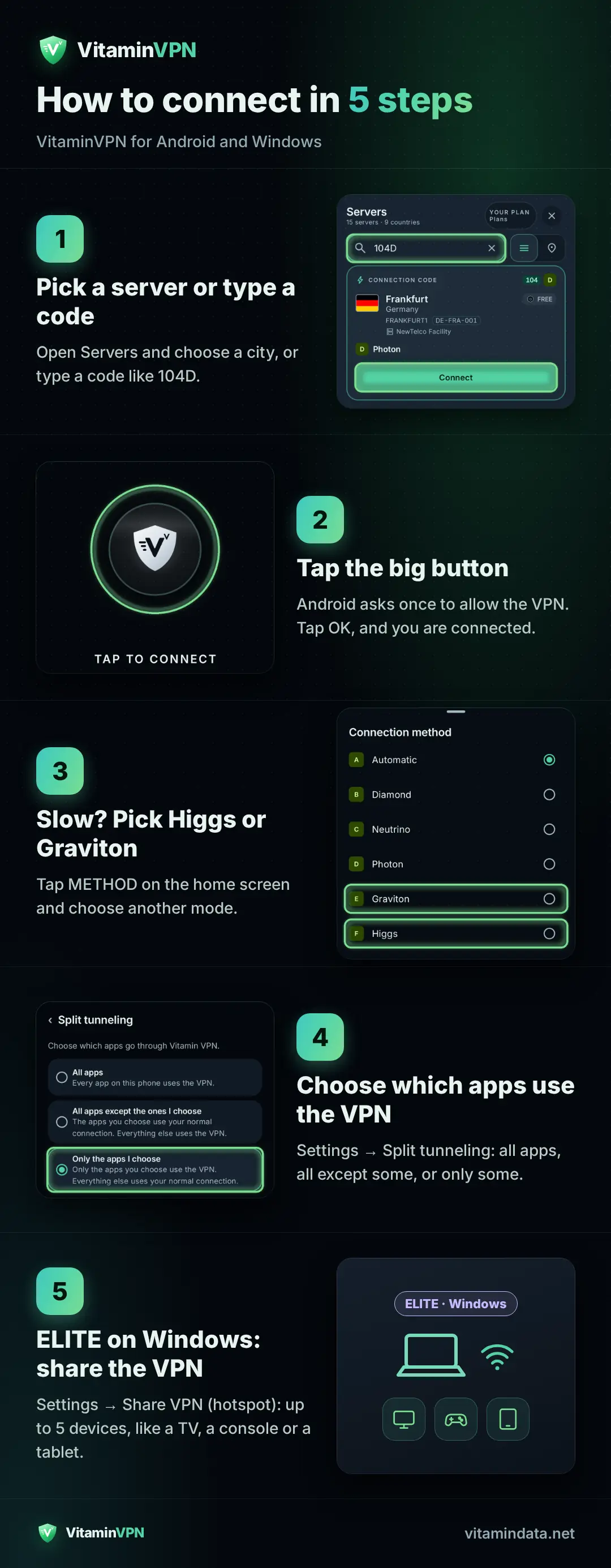
How to connect, in one picture: save it or share it with friends.
Connection modes: Automatic, Diamond and eight named modes
Every network is different. A mode that flies on home Wi-Fi may be blocked on another network. That is why VitaminVPN gives you a choice. Tap METHOD on the home screen (or go to Settings → Connection method) to see them all:
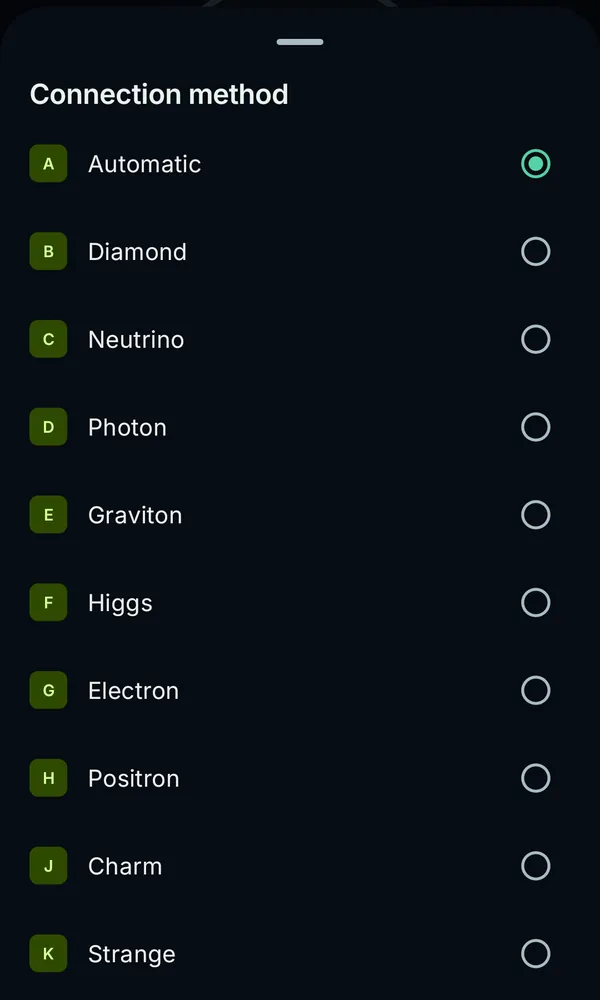
The Connection method list: Automatic (A), Diamond (B) and the named modes, each with its letter.
The named modes keep the same Latin names in every language. Here is what each one is good for:
| Letter | Mode | Best for |
|---|---|---|
| A | Automatic | Everyone. The app finds a working route by itself. Recommended. |
| B | Diamond | An extra layer: your connection goes through more than one of our servers. Where offered. |
| C | Neutrino | Top speed on open networks: gaming, video calls, big downloads. |
| D | Photon | The everyday all-rounder. Blends in with normal web browsing. |
| E | Graviton | Staying steady when other modes keep dropping. |
| F | Higgs | Very restrictive networks. Slower, but very hard to block. |
| G | Electron | Another web-style route. Try it when Photon feels slow. |
| H | Positron | A backup route for when other modes can't reach the server. Some servers only. |
| J | Charm | Electron's sibling. Try it if Electron connects but feels sluggish. |
| K | Strange | Positron's sibling, another backup route. Some servers only. |
If a mode is greyed out, the app says why in plain words, for example Not offered on this server or Not enabled for your account. Simply pick another one.
Automatic: the best choice for most people
Automatic is the default. It tries the fastest route first, then routes that blend in with everyday web traffic, then quieter routes that are harder to block, until one works. With Reconnect the way that worked turned on (it is on by default), the app tries the last working route first, so your next connection takes seconds instead of a full search. If the connection keeps dropping, the app also switches to another way by itself.
Diamond: through more than one server
Diamond sends your traffic through more than one of our servers instead of just one. It adds an extra layer between you and the internet. Diamond is offered on higher plans, where available: the plan comparison shows which plans include it. Because the route is longer, it can be a little slower than a direct mode.
Not connecting well? Try Higgs or Graviton
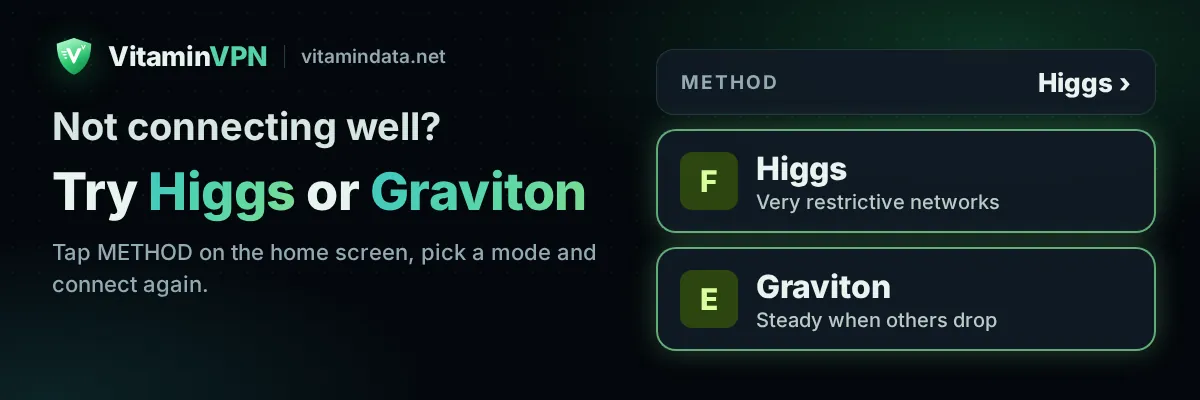
If VitaminVPN connects slowly, keeps dropping, or does not connect at all, you rarely need anything new. Change the mode or the server, in this order:
- Give Automatic a moment. On a hard network it may need a few tries. Let it finish Finding a way through.
- Pick a mode yourself. Tap METHOD on the home screen and choose Higgs or Graviton. Higgs is built for very restrictive networks; Graviton is steady when other modes drop. Then tap the big button again.
- Still slow? Try Photon or Electron, then Charm. On an open, unfiltered network, try Neutrino for top speed.
- Try another server. Open the servers list and pick Fastest available or another city. A server with lower load is often faster. You can check live status and ping on the server locations page too.
- Switch networks. Move between Wi-Fi and mobile data and connect again.
- Ask a friend for their code. If someone on the same internet provider is connected, their connection code (next section) gives you the exact server and mode that works for them.
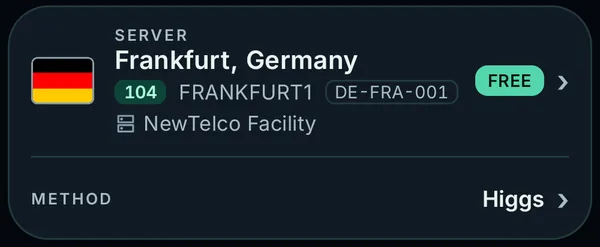
Higgs picked by hand: the METHOD row on the home screen now shows Higgs.
Switching modes or servers never costs extra. Still stuck? In the app, go to Settings → Get help for Common problems and Contact support, or read our setup help.
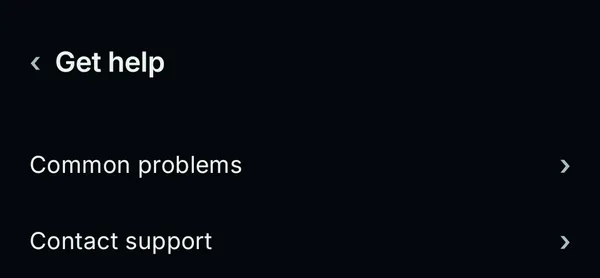
Settings → Get help: Common problems opens our help page; Contact support reaches our team.
Connection codes: share a setup that works
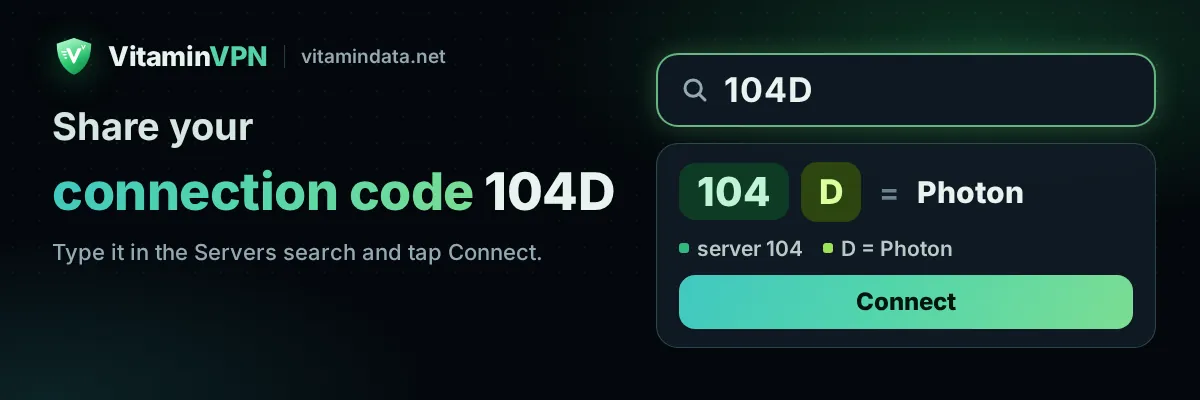
Each server has a number (like 104) and every connection method has a letter (A to K). Put them together and you get a connection code: 101D means server 101 with Photon. The letters never change, so a code you share today keeps its meaning.
To use a code: open Servers, type the code into the search box (it says Search city, server or code (101A)), and the app shows a Connection code card with the server and the method. Tap Connect.
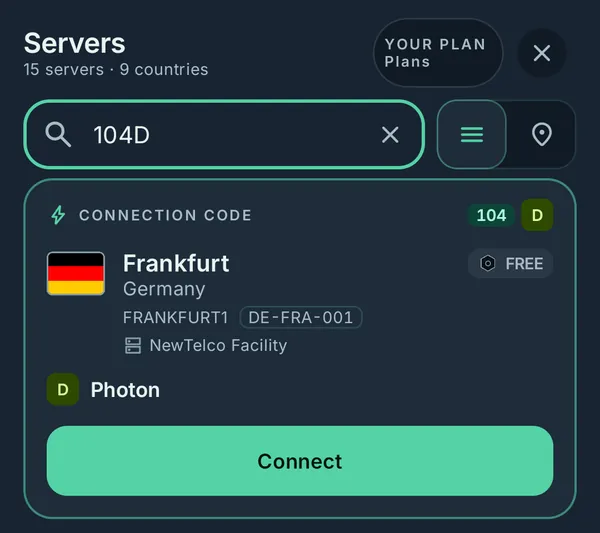
Typing 104D in the search box: server 104 in Frankfurt, connected with Photon (letter D).
To share your code: while you are connected, the home screen shows your current code with Copy code and Share. The shared message tells your friend exactly what to do: open the app, tap Servers and type the code in the search box.
Good to know:
- Connected with Automatic? Your code still shows the letter of the mode that actually worked, so your friend gets the exact working combination.
- If the method in a code is not available for your friend (for example, not offered on that server), the app says so and uses Automatic instead.
- The full letter list: A Automatic, B Diamond, C Neutrino, D Photon, E Graviton, F Higgs, G Electron, H Positron, J Charm, K Strange. There is no I or O, so nobody mixes them up with 1 and 0.
Split tunneling: choose which apps use the VPN
On Android, split tunneling is included in every plan. Go to Settings → Split tunneling and pick one of three options:
- All apps: every app on your phone uses the VPN.
- All apps except the ones I choose: the apps you pick use your normal connection; everything else uses the VPN. Handy for a local banking or delivery app.
- Only the apps I choose: only the apps you pick use the VPN, for example just your browser and messenger.
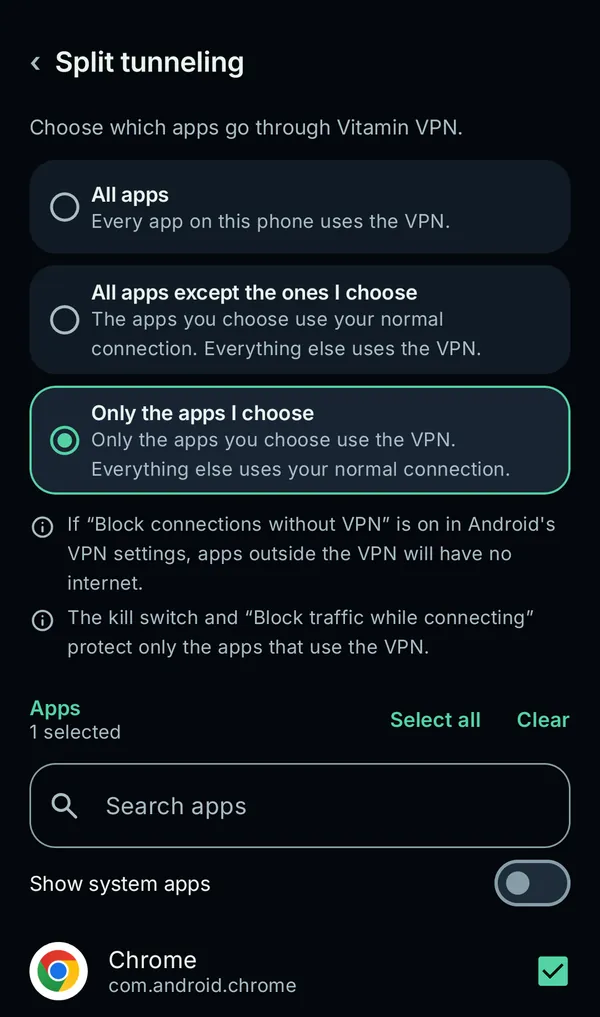
Split tunneling with Only the apps I choose: here, only Chrome uses the VPN.
Use Search apps to find an app quickly, and Show system apps to see the apps that came with your phone. Changes apply when you leave the screen; the VPN reconnects for a moment. Keep in mind: the kill switch protects only the apps that use the VPN, and if Block connections without VPN is on in Android's own VPN settings, apps outside the VPN will have no internet.
Servers, the map and plans
Tap your server on the home screen to open Servers. Each server shows its city, its number for connection codes, its name and data centre, live ping, load and port speed, and the plan it belongs to: FREE, PLUS, PRO or ELITE.
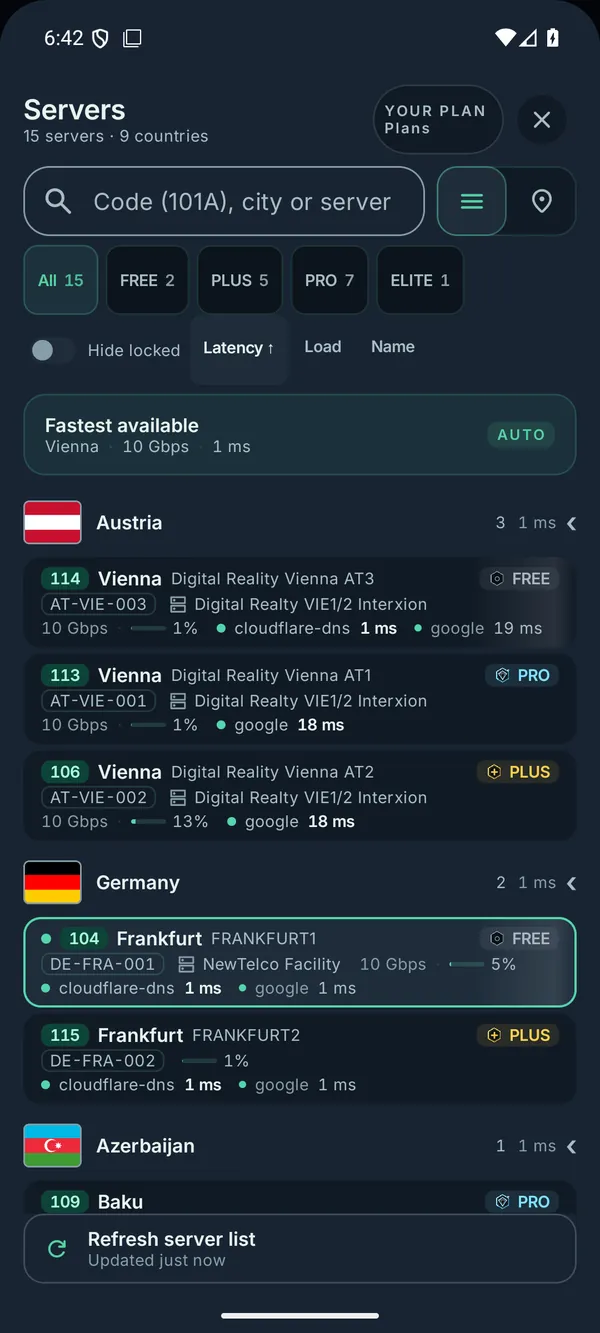
The servers list: filter by plan, hide locked servers, sort by latency, load or name.
- Fastest available picks the server with the most free speed, not just the nearest one.
- Filter by plan, or turn on Hide locked to see only the servers your plan reaches.
- Tap the pin icon for the map: our server cities on a world map. Tap a city to connect or switch.
- After you disconnect, you can rate the server from 1 to 5 stars. You can turn this off in Settings.
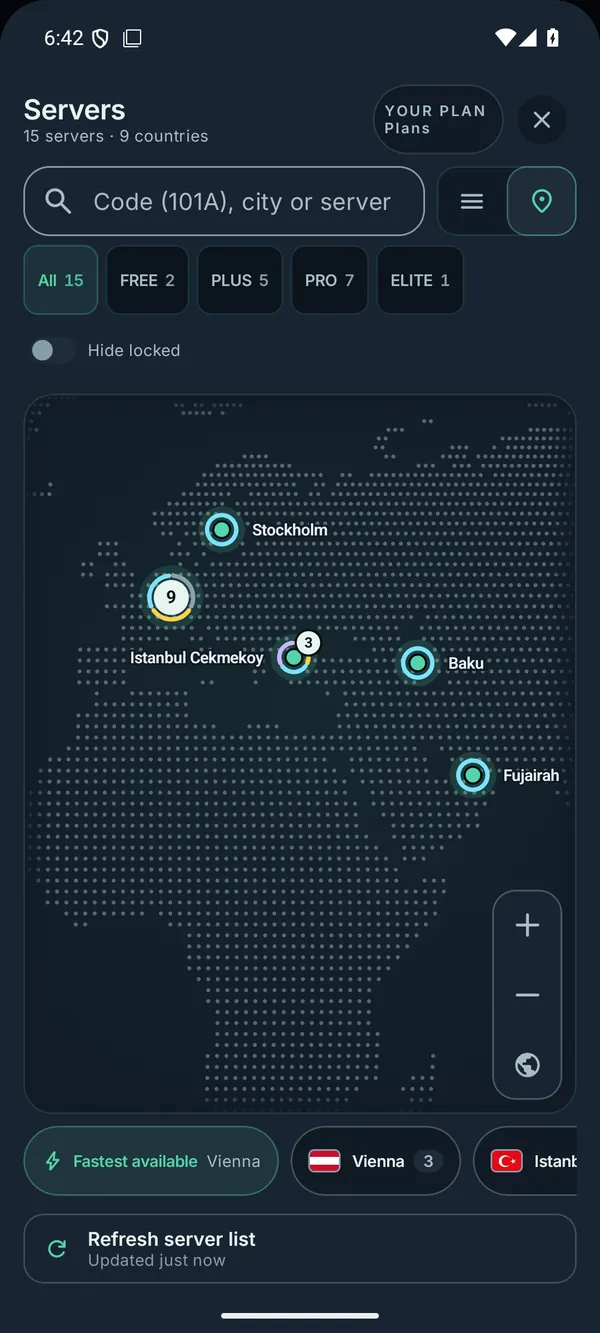
The map view: tap a city to see its servers and connect.
The same list, with live status, ping and the coming soon locations, is on our VPN server locations page. Each plan reaches the servers of the plans below it. Compare FREE, PLUS, PRO and ELITE side by side in the plan comparison, and see packages and today's prices under Buy VPN. The Plans button in the app opens the same pages.
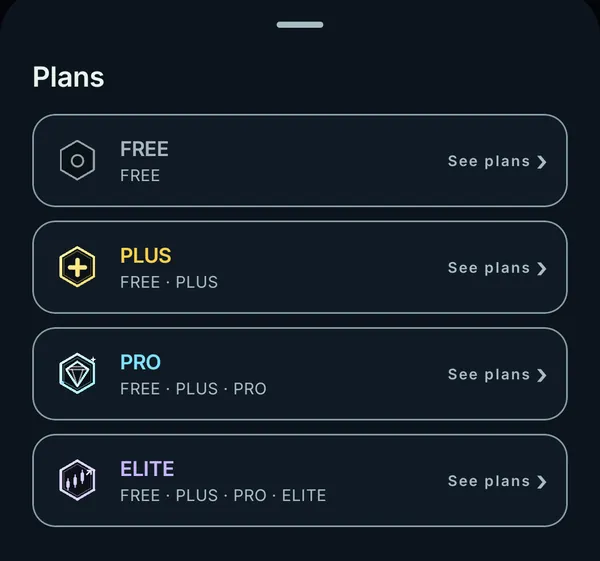
The Plans button on the home screen: FREE, PLUS, PRO and ELITE, each with See plans.
Kill switch and privacy features
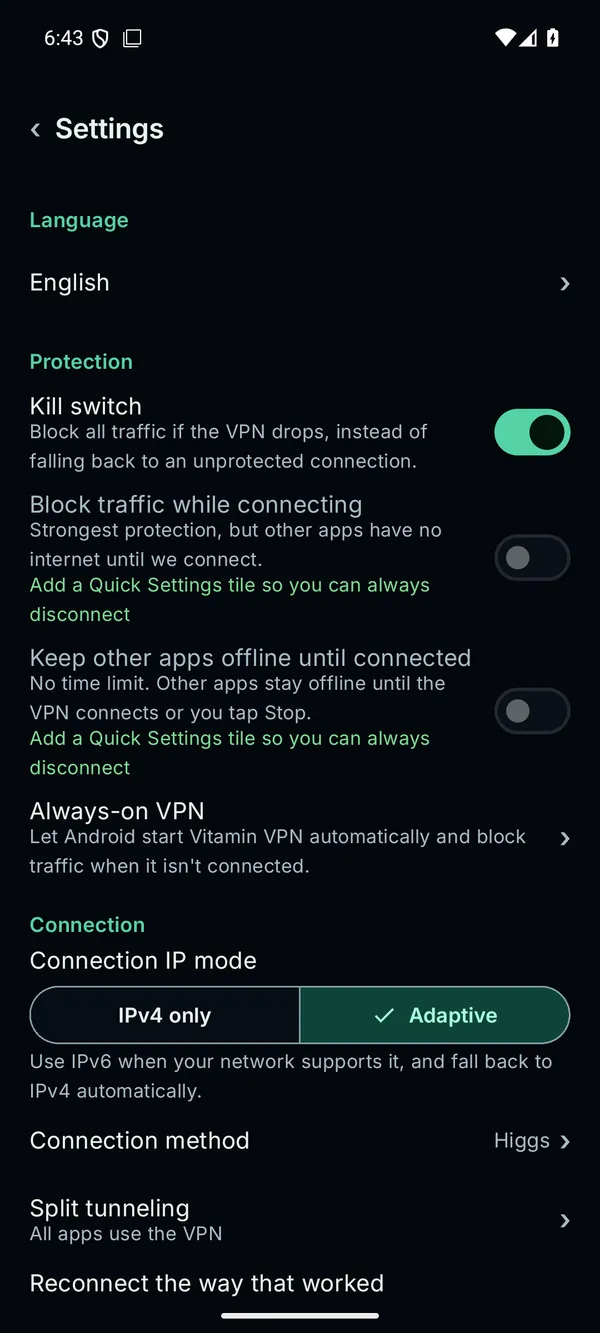
Settings: kill switch, protection while connecting, Always-on VPN and the connection IP mode.
- Kill switch: blocks all traffic if the VPN drops, instead of falling back to an unprotected connection. On Android it comes with the paid plans (PLUS, PRO, ELITE); on Windows with PRO and ELITE.
- Block traffic while connecting and Keep other apps offline until connected: the strongest protection, for paid plans with the kill switch on. Add the Quick Settings tile so you can always stop it.
- Always-on VPN: Android can start VitaminVPN by itself.
- Leak protection: IPv6 is held inside the VPN so it cannot leak, and DNS lookups go through the VPN.
- Connection IP mode: Adaptive (IPv6 when your network supports it, otherwise IPv4) or IPv4 only.
- Your sign-in is stored encrypted on your phone, and the notification hides your server on the lock screen.
- Verify this build: compare the app's signing fingerprint with the one on our website.
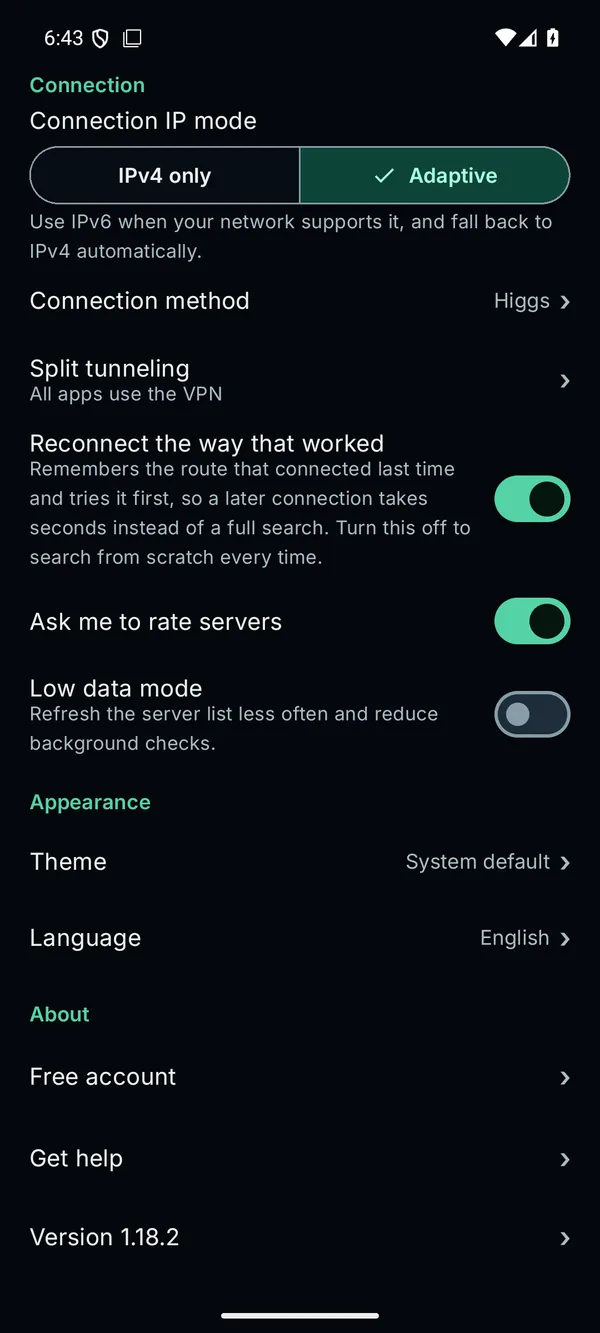
More settings: connection method, split tunneling, Reconnect the way that worked, Low data mode, theme, language and Get help.
You can also choose the theme (System default, Light or Dark), the language, and Low data mode, which refreshes the server list less often. For quick access there is a home-screen widget, a Quick Settings tile, and you can pin any server to your home screen.
No activity logs: we never record the sites you visit, your traffic or your DNS lookups. For your plan we count only the data you use and the devices online. Details are in our privacy policy.
VitaminVPN for Windows
The Windows app has the same connection modes, connection codes, servers list and map, plus:
- One click to connect, with Automatic trying every connection type until one works.
- DNS and IPv6 leak protection on every connection and every plan, even with the kill switch off.
- A system tray icon that shows the connection state, live download and upload speed, and an option to start with Windows.
- Updates that install nothing until you click, with what's new shown in Settings first.
- Two installers: the classic setup wizard and a one-click installer. Windows 10 or 11, 64-bit or 32-bit.
Share VPN (hotspot): your PC as a VPN Wi-Fi hotspot, on ELITE
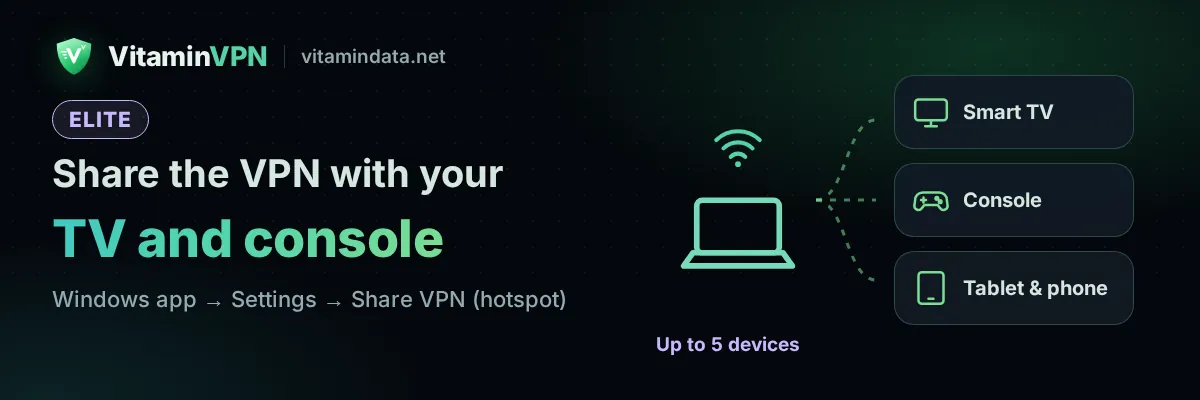
With the ELITE plan, the Windows app can turn your PC into a Wi-Fi hotspot that up to 5 devices can join, and everything they do goes through the VPN. It is ideal for devices that cannot run a VPN app: a smart TV, a game console, a tablet or phone without the app, or a guest's device.
How to turn it on:
- Sign in with an ELITE VPN account and connect.
- Open Settings → Share VPN (hotspot) and turn on Share VPN over Wi-Fi.
- Sharing needs the kill switch, so shared devices always stay inside the VPN. If it is off, tap Turn on the kill switch and share.
- On the other device, join the Wi-Fi network shown under Network name with its password. Use Copy password, or Show QR code and scan it with a phone camera.
Good to know: the PC's own Wi-Fi must be turned on and free, so connect the PC to the internet by cable. The app tells you if Windows' Mobile Hotspot is turned off or not supported on the PC. New password makes every device join again. On a lower plan the row says Part of the ELITE plan: see the ELITE plan and compare plans.
For resellers: sell VPN accounts that work
Run a shop, a Telegram channel or a small business? With the VitaminDATA reseller program you buy VPN accounts from your balance and sell them at your own price. Every account works in VitaminVPN, and connection codes make supporting your customers easy: send them a code that works on their network and they are online in seconds.
Get VitaminVPN
- Read about the app and its latest updates on the VitaminVPN app page.
- Start for free on the free VPN page, or buy a fast VPN on the VPN plans page. Pay by bank card or crypto.
- Check our server locations, or set up other devices with our setup help.
Want to know how VitaminVPN compares with other VPN protocols? Read Best VPN protocols in 2026, and see what changed in our new website announcement.
Frequently asked questions
Is VitaminVPN free?
Yes, VitaminVPN is included in every plan, including the free plan. Create an account on the free VPN page, confirm your e-mail and connect to our free servers. Paid plans reach more servers and add features such as the kill switch.
Which connection mode should I choose?
Start with Automatic. If the connection is slow or drops, tap METHOD on the home screen and try Higgs or Graviton, then Photon or Electron. On an open network, Neutrino is the fastest.
Does VitaminVPN work in Iran, China or Russia?
VitaminVPN is built for filtered networks like these. It has several connection modes, tries them one after another and remembers what worked. No VPN can promise to work on every network at every moment, but if one mode or server is blocked you can switch to another in seconds, with no new purchase.
What is a connection code like 101D?
It is a server number plus a method letter: 101D means server 101 with Photon. Type it into the search box in Servers to connect the same way, and use Copy code or Share on the home screen to send yours.
Can I use the VPN for only some apps?
Yes. On Android, Settings → Split tunneling lets you choose all apps, all apps except the ones you pick, or only the apps you pick. It is included in every plan.
What does the kill switch do?
It blocks all traffic if the VPN drops, so nothing leaves your device unprotected. On Android it comes with every paid plan; on Windows with PRO and ELITE.
Is there a VitaminVPN app for iPhone or Mac?
The VitaminVPN app is for Android and Windows. On an iPhone, iPad or Mac, the same account works in standard VPN apps through your subscription link: see our setup help.
Can I use the VPN on my smart TV or game console?
Yes, with the Windows app and the ELITE plan: Share VPN (hotspot) turns your PC into a VPN Wi-Fi hotspot for up to 5 devices. See the ELITE plan.
Which username and password does the app need?
Your VPN username and VPN password, from the VPN password card under My VPNs in your account. Not your website e-mail or password.
Do you keep logs?
No activity logs: we never record the sites you visit, your traffic or your DNS lookups. For your plan we count only the data you use and the devices online.
How do I pay?
By bank card or crypto at checkout, or from your account balance. Compare the plans on the VPN plans page.
Ready for a fast VPN that keeps you connected? Get VitaminVPN with a free account or choose your plan on the VPN plans page.